How to connect your Instagram to your Humanz account:
Before we begin, please make sure you've completed the following checklist:
✅ Your Instagram account is set to a Professional or Business account (not a Personal account).
✅ Your Instagram account is public, not private.
✅ You have the Humanz and Instagram apps installed on your phone.
Once you’ve confirmed all the above, let’s get started:
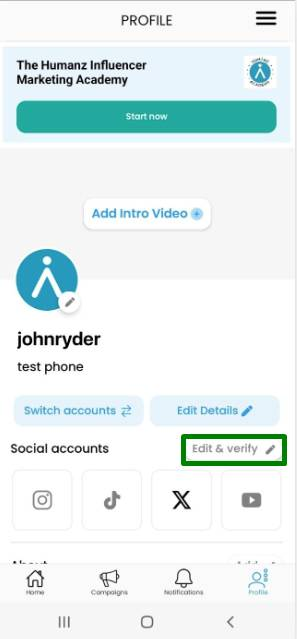
Go to your Profile > Social Accounts and tap Edit & Verify.
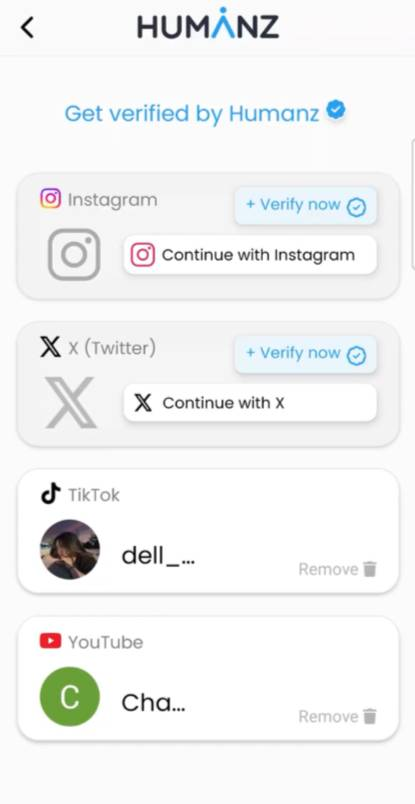
Select Continue with Instagram and start connecting your account.
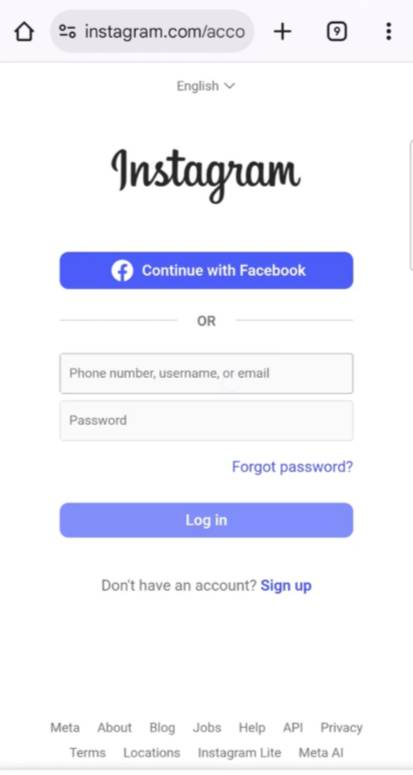
Next, the Humanz app will redirect you to Instagram and you'll be asked to log in to your Instagram account with your email address/username and password
Permissions - once logged in, you will be asked to allow permissions to view profile, access, and manage insights, set the toggles to 'Allow'.
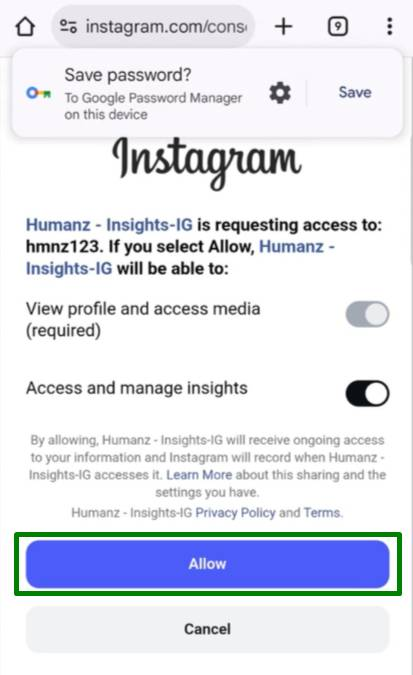
Important:
Both permission toggles must be turned on to achieve full verification! Set both to ON.After completing the previous step, you will be redirected to the Humanz app, and your Instagram connection will appear connected and verified!
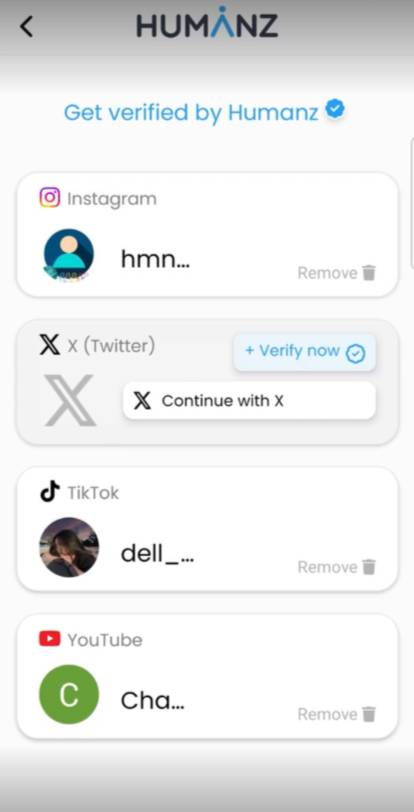
✅ That's it!
Instagram is now connected with the Humanz app.
You're all set and ready to go!
Common Issues & Troubleshooting
- None Business or Non Creator account -
The following error means that your IG account is not set correctly: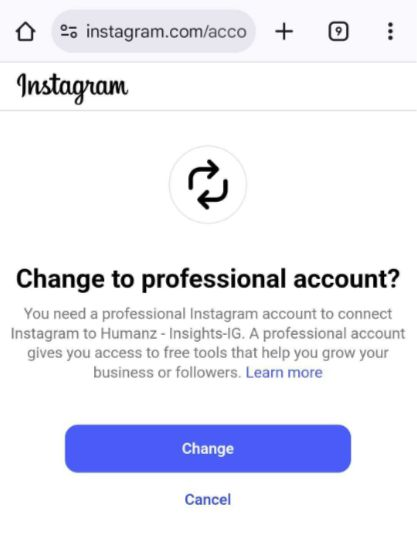
As noted at the beginning of the article, having a Business or Creator Instagram account is required to get verified with Humanz in order to proceed.
✅ Tap 'Change' and switch your Instagram account to a Business or Creator account.
✅ Return to the Humanz app, and repeat the connection process from the top. - Missing Permission Error -
The following message indicates that certain mandatory permissions are missing, and it prevents you from getting verified:
“Some permissions are missing. Please grant all required permissions to continue.”
How to fix this?- Return to the Humanz app, and repeat the connection process described in this article. Give close attention to step number 4, making sure you set both permission toggles to ON.
- Return to the Humanz app, and repeat the connection process described in this article. Give close attention to step number 4, making sure you set both permission toggles to ON.
Was this article helpful?
That’s Great!
Thank you for your feedback
Sorry! We couldn't be helpful
Thank you for your feedback
Feedback sent
We appreciate your effort and will try to fix the article
